
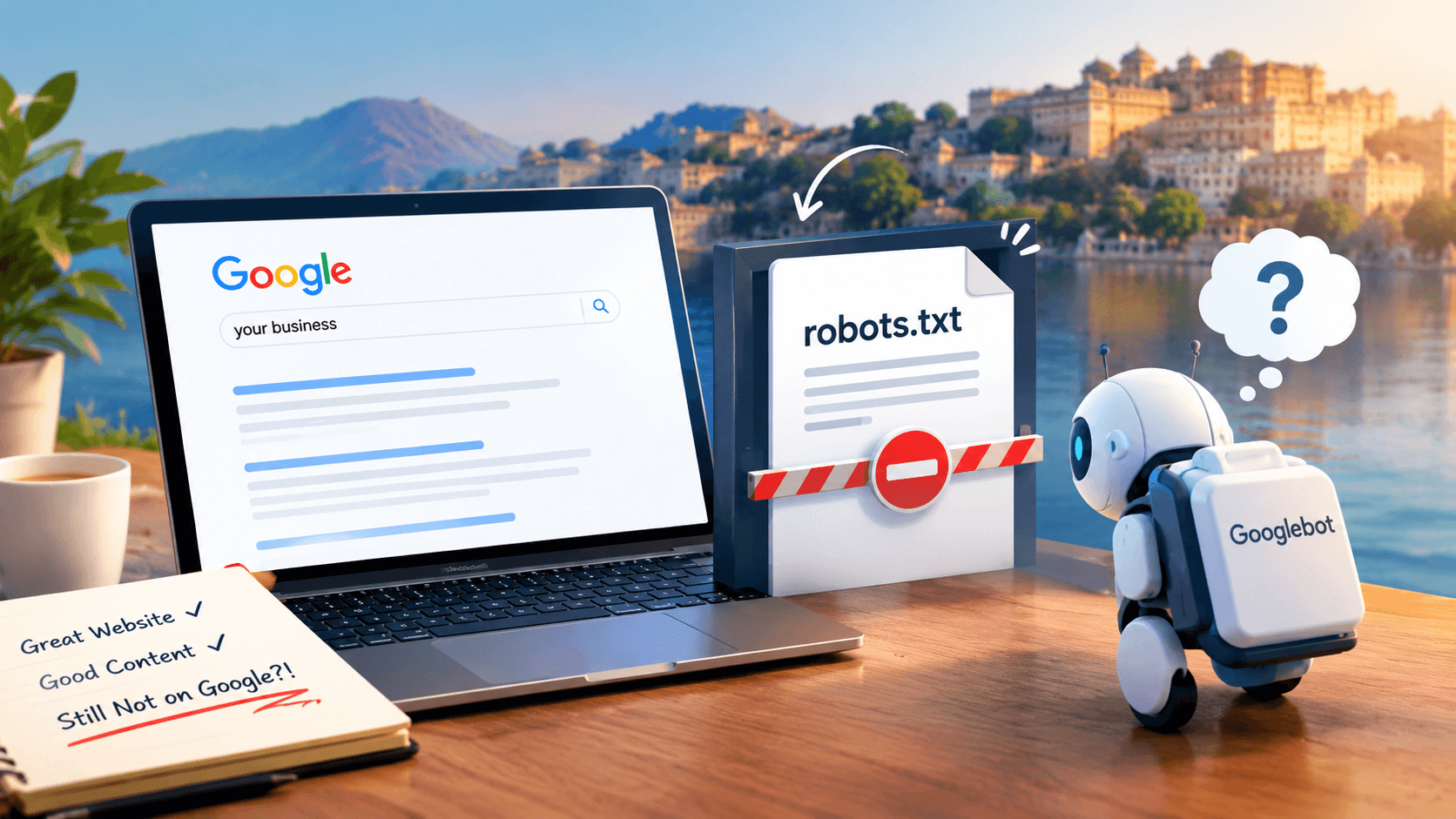
Imagine you have invested money in a website, added your services, uploaded good photos, and written content to attract customers. But when people search for your services on Google, your website rarely appears.
You might think your competitors have better websites or that ranking on Google is too difficult.
But have you checked whether Google can even access your website properly?
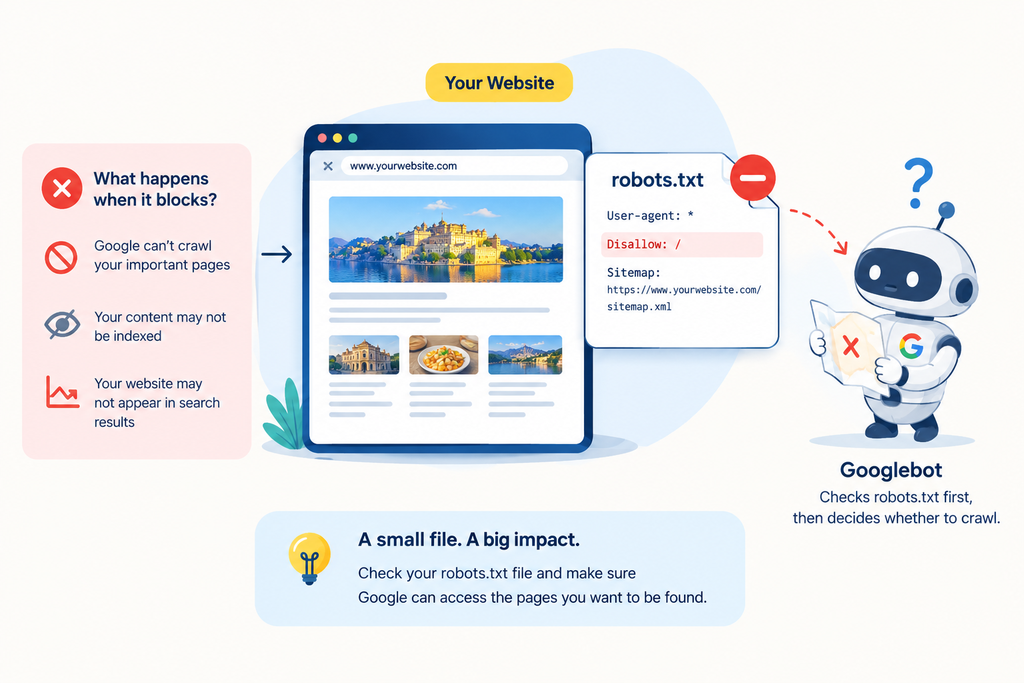
Sometimes, a small file called robots.txt can prevent search engines from visiting important pages on your website.
Let’s understand what this file does, why it matters, and how you can check it without being a technical expert.
1. What Is a Robots.txt File?
Think of your website as a shop.
When a customer visits, they can enter the shop, look at your products, and learn about your services. But imagine putting a sign outside that says, “Do not enter this section.”
A robots.txt file works in a similar way for search engine crawlers.
In simple words, robots.txt tells search engines which parts of your website they can or cannot visit.
Search engines like Google use automated programs called crawlers to discover and read website pages. These crawlers help Google understand what your website offers.
A robots.txt file provides instructions to these crawlers.
For example, you may want Google to visit your homepage, service pages, blogs, and product pages. But you may not want it to waste time visiting certain internal pages that offer little search value.
That is where robots.txt comes in.
You can usually find this file by opening your browser and entering:
https://yourwebsite.com/robots.txt
Replace yourwebsite.com with your actual domain name.
Important: Robots.txt is not a security system. It does not protect private information or stop people from accessing a page. It gives instructions to crawlers, and not every crawler follows them.
2. How Can Robots.txt Affect Your Website’s SEO?
Let’s say you run a dental clinic in Udaipur and have a page about dental implants.
When someone searches for “dental implants in Udaipur,” you want Google to discover that page and consider it for relevant search results.
But what happens if your robots.txt file accidentally tells Google not to visit that page?
Google may be unable to read the page’s content. This makes it harder for Google to understand what the page is about and can affect its appearance in search results.
The same problem can affect a hotel’s room pages, a restaurant’s menu, or an ecommerce store’s product pages.
However, a robots.txt problem does not automatically mean your entire website will disappear from Google. Its impact depends on which pages are blocked and what other issues your website may have.
Also, fixing robots.txt does not guarantee a high ranking. Google still considers content quality, relevance, competition, and other factors.
Crawling vs. Indexing: What’s the Difference?
These two SEO terms sound complicated, but the idea is simple.
- Crawling: Google visits a webpage and reads its available content.
- Indexing: Google processes the information and may store the page in its search database.
- Ranking: Google decides which results to show and in what order for a particular search.
Think of it like a library.
First, someone finds a book. Then the library records its information in a catalogue. Finally, when a reader asks for a particular topic, the library helps them find relevant books.
Similarly, Google must discover and crawl a page before it can normally understand and index its content. But not every page that Google crawls gets indexed, and not every indexed page ranks well.
A robots.txt file mainly controls crawling, not whether a page should appear in search results.
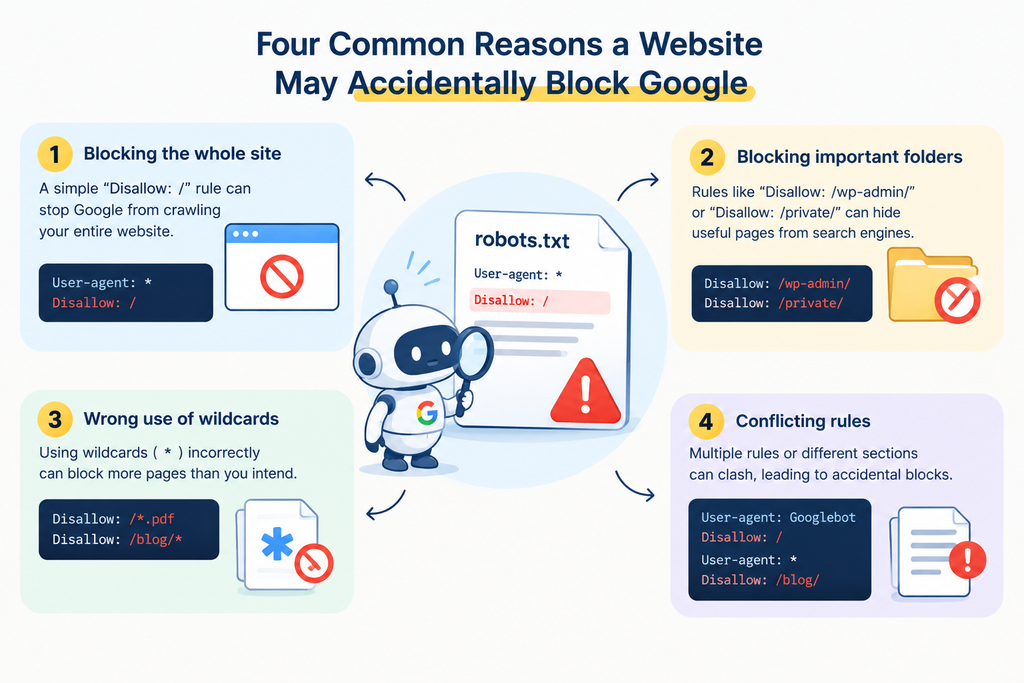
3. Four Common Reasons a Website May Accidentally Block Google
Most business owners do not check robots.txt regularly. Problems can arise when a website is redesigned, its settings are changed, or technical updates are made.
Here are four things worth checking.
Reason 1: A Website Redesign Left the Wrong Settings Behind
Suppose you hire a developer to redesign your website.
Before the new website goes live, the developer may prevent search engines from visiting the unfinished version. This helps avoid exposing test pages and incomplete content.
But after the new website launches, those restrictions must be reviewed.
If an overly restrictive rule remains on the live website, Google may be prevented from crawling important pages.
For example, this rule blocks all paths on the website for crawlers that follow it:
User-agent: *
Disallow: /
In simple words, it tells crawlers covered by this rule: “Do not visit any page on this website.”
If you recently redesigned your website and your search visibility suddenly dropped, ask your developer to check the live robots.txt file.
Reason 2: Your WordPress Visibility Setting Is Incorrect
WordPress has a setting called “Discourage search engines from indexing this site.”
It is generally found under:
WordPress Dashboard → Settings → Reading
This setting is useful while building a website that is not ready for public discovery.
However, if it remains enabled after launch, it can prevent search engines from indexing your website.
The exact technical instructions WordPress uses can vary by version and configuration. It does not always add a Disallow: / rule to robots.txt.
What should you do?
If your website is meant to appear on Google, check that the option to discourage search engines is turned off. If you are unsure, ask your developer to verify the site’s indexing settings.
Reason 3: Important Website Files Are Blocked
Your website contains more than text and pictures.
It also uses files that control its appearance and functionality, such as:
- CSS: Controls the website’s design, layout, colours, and spacing.
- JavaScript: Helps interactive features work, such as menus, forms, and other dynamic elements.
- Images: Show your products, services, team, and business location.
Google may need access to some of these files to understand how your pages work and appear to visitors.
If important files are blocked, Google may not be able to render or understand parts of your website properly.
For example, a clinic’s appointment page might depend on scripts to display important content. If those files are inaccessible to Google, the search engine may not see the page as intended.
This does not mean every blocked file will harm your SEO. The problem depends on which files are blocked and whether Google needs them to understand the page.
Ask your developer to check whether any important design or functionality files are unnecessarily restricted.
Reason 4: A Small Rule Blocks More Pages Than Intended
Robots.txt instructions can match URL paths based on their beginnings.
For example, this rule:
User-agent: *
Disallow: /tours
may block paths such as:
- /tours/
- /tours-in-udaipur
- /tours-packages/
This can become a problem if you only intended to restrict a specific folder.
If the intention is to block paths within a folder named /tours/, a more specific rule may be appropriate:
User-agent: *
Disallow: /tours/
The exact rule should depend on your website’s URL structure and what you actually want to restrict.
This is why even a small configuration change should be checked carefully before it is published.
4. How to Check Your Robots.txt File Yourself
You do not need to know coding to perform the first check.
Step 1: Open Your Robots.txt File
Open Chrome or another browser and enter:
https://yourwebsite.com/robots.txt
Replace the example domain with your own website.
You may see a few lines of plain text. That is normal.
Step 2: Look for a Rule That Blocks Everything
Check whether the file contains these two lines together:
User-agent: *
Disallow: /
This combination tells the crawlers covered by the rule not to crawl any path on the website.
If you find it on your live website, do not delete it immediately. First confirm that the restriction is not intentional and check whether other rules or configurations affect the result.
If you see other instructions, they may be perfectly normal. The presence of a robots.txt file does not itself indicate a problem.
Step 3: What If the File Is Missing?
If the address returns a 404 error, it usually means no robots.txt file was found at that URL.
That does not automatically mean your website is blocked. If Google can access the website and there are no other restrictions, it can generally crawl the site’s public pages.
A missing file is not necessarily an SEO emergency. You should investigate further only if there is a specific reason to configure one.
Step 4: Check Google Search Console
Google Search Console is a free tool that helps website owners understand how Google sees their websites.
If you have access to it:
- Open Google Search Console.
- Select your website.
- Enter the URL of an important page in the inspection bar at the top.
- Review the indexing information and any reported crawling problems.
- Use the live URL test where available to check whether Google can access the page now.
If Google reports that a URL is blocked by robots.txt, investigate the relevant rule.
Remember that a live test shows the current situation; it does not guarantee that the page will be indexed or ranked.
5. What Should a Robots.txt File Look Like?
There is no single perfect robots.txt file for every website. The correct setup depends on the website and its requirements.
For many standard WordPress websites, a simple starting point looks like this:
User-agent: *
Disallow: /wp-admin/
Allow: /wp-admin/admin-ajax.php
Sitemap: https://yourwebsite.com/sitemap_index.xml
Here is what the instructions mean.
- User-agent: * means the rules apply to crawlers covered by this group.
- Disallow: /wp-admin/ tells those crawlers not to crawl paths within the WordPress administration area.
- Allow: /wp-admin/admin-ajax.php makes an exception for that particular file.
- Sitemap: provides the location of the XML sitemap, if this is the correct sitemap address for your website.
An XML sitemap is a file that lists important URLs on your website to help search engines discover them.
Important: This is an example, not a template you should blindly copy. Your sitemap may have a different URL, and some websites require additional or different rules. A WordPress site can also work correctly without a customized robots.txt file.
Do not block entire folders simply because their names look technical. First confirm what those folders contain and whether Google needs access to their files.
6. Robots.txt vs. Noindex: They Are Not the Same
This is one of the most important differences to understand.
Suppose you have a temporary page that you do not want to appear in Google search results.
You might assume that blocking it in robots.txt will remove it from Google. But that is not necessarily true.
Here is the difference:
Robots.txt
Tells crawlers whether they can visit a page or file.
Noindex
Tell search engines not to include a page in their search results, provided they can crawl the page and read the instruction.
For example, a page may contain this instruction:
<meta name=”robots” content=”noindex”>
If Google can access the page, it can read this instruction and process the request not to index it.
But if robots.txt prevents Google from visiting the page, Google may not be able to read the noindex instruction.
As a result, the URL could still appear in search results under certain circumstances, such as when other websites link to it.
If you want a page removed from Google, use the appropriate method for your situation. For a noindex instruction to work, the page must remain crawlable so Google can read it.
7. Two Examples of How These Problems Can Affect Businesses
The following are hypothetical examples to show how robots.txt problems can occur. They are not verified client case studies.
Example 1: A Hotel Loses Search Visibility After a Redesign
Imagine a boutique hotel in Udaipur launches a new website before the tourist season.
The website looks attractive and includes updated room photographs, pricing information, and a direct booking option.
However, the development version had a rule that blocked all crawlers. The same rule accidentally remains on the live website.
Google may now be unable to crawl important rooms and booking pages.
What should the hotel do?
- Check the live robots.txt file.
- Confirm that the restriction was not intended.
- Correct the rule with the help of its developer.
- Check important URLs in Google Search Console.
- Monitor crawling, indexing, and organic search performance over time.
After the problem is corrected, Google may revisit the affected pages. Recovery is not necessarily immediate, and improved visibility is not guaranteed.
Example 2: A Dental Clinic Finds Its Service Page Is Blocked
Imagine a dental clinic has a page explaining its dental implant services.
The clinic notices that the page is not appearing in search results. After checking Google Search Console, its marketing team discovers that the URL is blocked by a robots.txt rule.
The team reviews the configuration with its developer and finds that the restriction is unnecessary.
Once the rule is corrected, Google can crawl the page again, assuming no other restrictions exist.
The clinic should then check whether the page is indexed and continue improving its content, local relevance, and overall website quality.
The lesson is simple: before rewriting a page or spending more money on promotion, check whether Google can access it in the first place.
8. Robots.txt Best Practices for Business Owners
You do not need to edit your robots.txt file every week. You simply need to ensure it supports your website’s purpose.
Keep these points in mind:
- Keep important pages accessible: Make sure the pages you want to appear in Google are not unnecessarily blocked.
- Review the file after a redesign: Ask your developer to check that development restrictions have not been carried over to the live website.
- Check your WordPress visibility settings: Ensure your website is not accidentally configured to discourage search engines.
- Avoid blocking essential resources: Check whether Google needs access to your CSS, JavaScript, and other files to understand your pages.
- Use the correct sitemap address: Include it in robots.txt if appropriate, and make sure the sitemap contains the intended URLs.
- Do not use robots.txt for privacy: Use proper authentication or access controls for confidential information.
- Test before making changes: Keep a copy of the current file and verify the results after any update.
For most small business websites, a complicated robots.txt setup is unnecessary. Unneeded rules can create more problems than they solve.
9. What to Do If You Find a Problem
If you discover that an important page is blocked, follow this simple process:
- Identify the affected page. Check which URL Google cannot crawl.
- Find the relevant rule. Look for the instruction that matches that page.
- Confirm the intended behaviour. Make sure the restriction is not needed for another purpose.
- Correct the configuration carefully. If you are unfamiliar with website settings, ask your developer or SEO specialist to make the change.
- Test the page again. Use Google Search Console’s URL Inspection tool where available.
- Monitor the outcome. Check whether Google recrawls the page and whether its indexing status changes.
Avoid making random changes to the file. A rule that fixes one issue can unintentionally expose other paths to crawlers or affect pages you did not intend to change.
Frequently Asked Questions
Q1. Does every website need a robots.txt file?
Ans: No. A website can work without a robots.txt file. Search engines can generally crawl publicly accessible pages without one. However, creating a robots.txt file can be useful when you want to manage crawler access to specific areas of your website.
Q2. Can robots.txt affect how often Google visits my website?
Ans: Yes, indirectly. Your robots.txt rules can prevent Googlebot from crawling certain URLs. Google also considers factors such as website changes, crawl capacity, and server performance when deciding how frequently to crawl a website.
Q3. Should I create separate robots.txt files for desktop and mobile websites?
Ans: No. A standard website uses one robots.txt file for its hostname, regardless of whether visitors use desktop or mobile devices. If your mobile site uses a separate subdomain, such as m.example.com, it can have its own robots.txt file.
Q4. Can robots.txt prevent AI search engines from using my website content?
Ans: It depends on the crawler. Some AI-related crawlers respect robots.txt rules, while others may not. You need to identify the specific crawler and check its documentation before adding rules. Blocking a crawler also does not automatically remove content it has already accessed or that is available elsewhere.
Q5. What happens if my website has multiple robots.txt files?
Ans: For a given hostname and protocol, search engines generally expect one robots.txt file at the root location, such as https://example.com/robots.txt. If you create multiple files in different folders, they do not act as separate robots.txt files for those folders. Rules should be organized in the main file for that hostname.
Conclusion: Make Sure Google Can Find Your Website
Your website can be beautifully designed, full of useful information, and ready to attract customers. But if Google cannot access important pages, your SEO efforts may not deliver their full potential.
A robots.txt file helps guide search engine crawlers. When configured incorrectly, it can prevent them from visiting pages you want customers to discover.
The good news is that the first check is simple.
Open your website’s /robots.txt address, look for any unexpected restrictions, and use Google Search Console to investigate problems with important pages.
If you are unsure about a rule, consult your developer before changing it.
Remember: SEO is not only about creating good content. It is also about making sure search engines can access and understand that content.
If your website needs a deeper technical check, explore our Technical SEO Services to help identify issues that may affect crawling, indexing, and search visibility.
About the Author

Richa Meena
SEO Specialist at ImmortalSEO with expertise in technical SEO and content optimization.
View all posts