
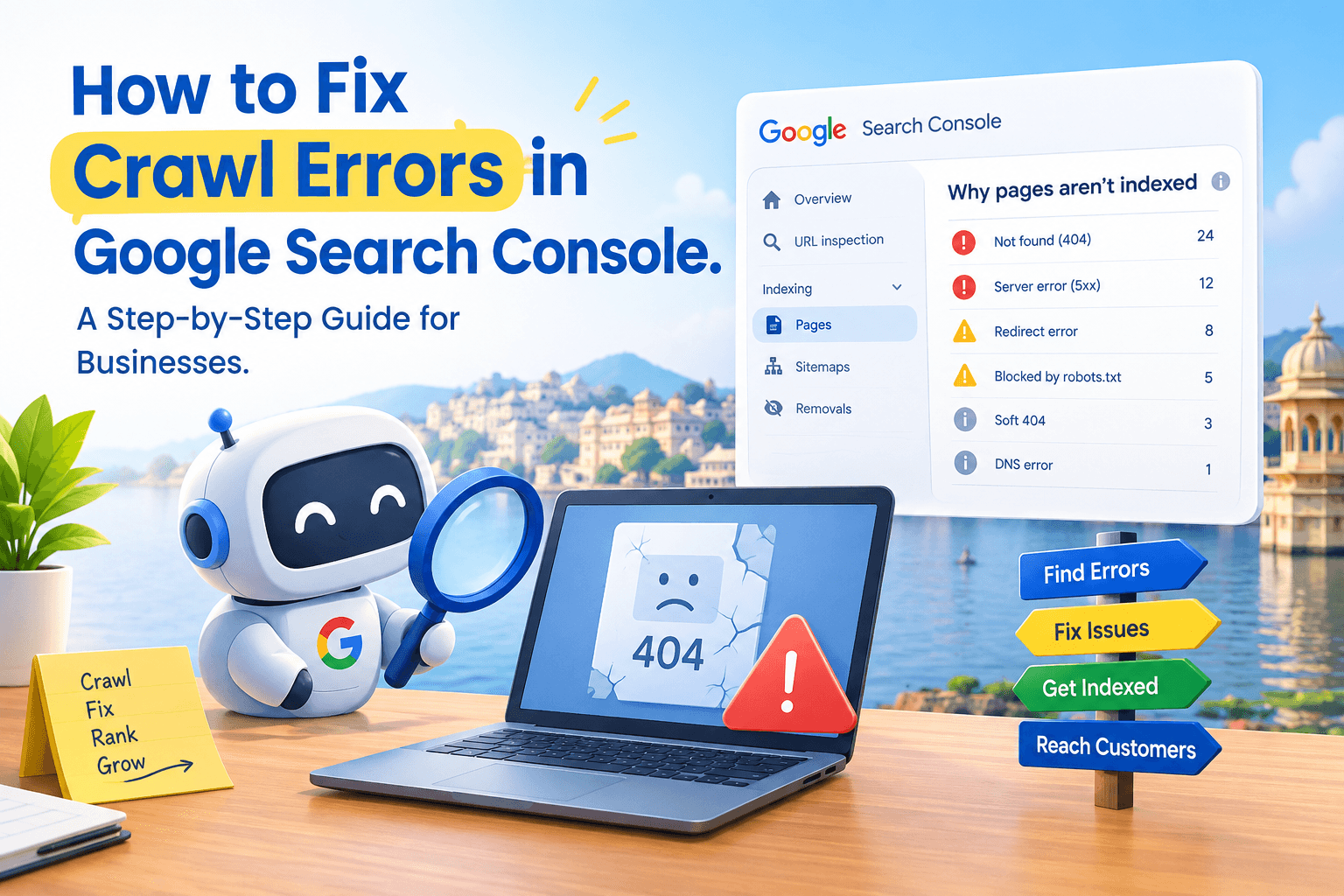
If you’ve ever searched your own business name on Google and felt confused that your website wasn’t showing up the way you expected, crawl errors could be the reason. Whether you run a boutique hotel near Lake Pichola, a clinic in Hiran Magri, or a coaching centre near Fatehpura, your website needs to be crawled and indexed correctly before Google can show it to potential customers.
This guide walks you through how to fix crawl errors in Google Search Console, step by step, in plain language, even if you’ve never opened Search Console before.
What Are Crawl Errors, and Why Should Udaipur Business Owners Care?
A crawl error happens when Googlebot, the automated program Google uses to visit and read websites tries to access a page on your site and fails. This could be because the page doesn’t exist anymore, the server didn’t respond, or something on your site is accidentally blocking Google from reaching it.
Think of Googlebot as a customer trying to walk into your shop. If the door is locked, the address is wrong, or the shop has moved without a signboard update, that customer simply turns around and leaves. Crawl errors work the same way except the “customer” is Google, and if it can’t get in, it can’t recommend your business to real customers searching nearby.
How Crawling Affects Whether Customers Find You
Before a page can rank in Google search results, it must first be crawled and then indexed. If a page returns a crawl error, Google generally won’t index it, which means it won’t appear in search results at all regardless of how good your content or services are. For a local business, this can mean your service pages, offers, or even your homepage stay invisible to people actively searching in Udaipur.
Where to Find Crawl Errors in Google Search Console
Google Search Console (GSC) is a free tool from Google that shows you exactly how Googlebot sees your website, including any errors it runs into.
Using the Pages Report
- Log in to Google Search Console.
- Select your website property.
- In the left-hand menu, click Pages under the “Indexing” section.
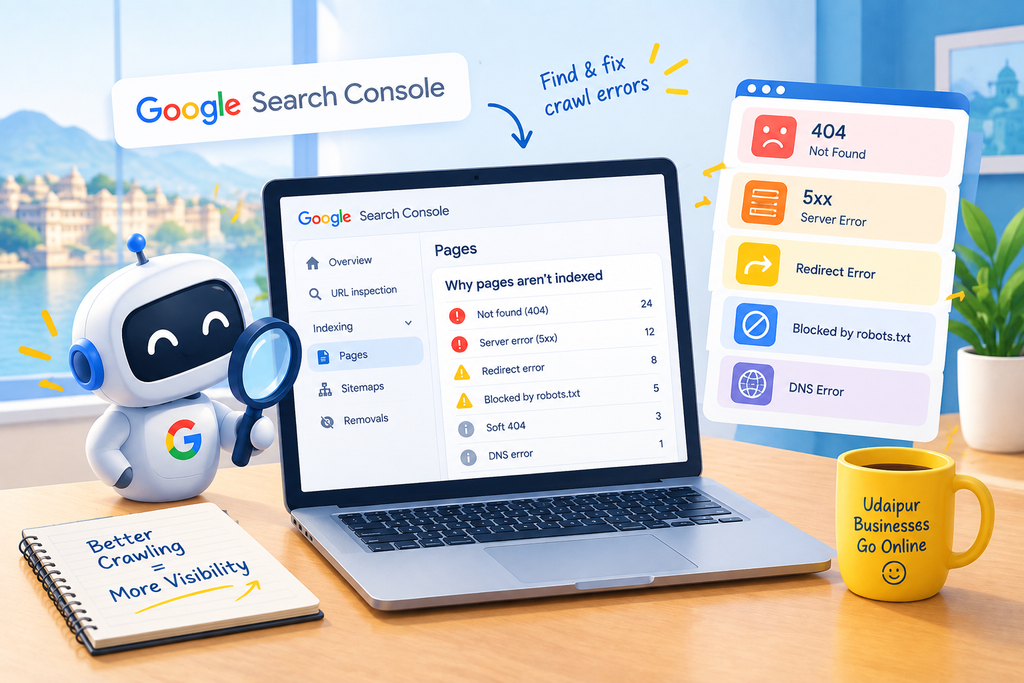
- Scroll to the section titled Why pages aren’t indexed. This lists every crawl and indexing issue, grouped by type, along with the number of URLs affected.
Using the URL Inspection Tool
If you want to check one specific page, say, your Udaipur services page or a blog post, paste the exact URL into the search bar at the top of Search Console. This tool tells you:
- Whether the page is indexed
- The last time Google crawled it
- Any errors found during that crawl
- Whether the page is blocked from crawling
This is the fastest way to diagnose a single page without digging through the full report.
The Most Common Crawl Errors (And What They Actually Mean)
| Error Type | What It Means | Typical Cause |
| 404 (Not Found) | The page doesn’t exist at that URL | Page deleted or URL changed without a redirect |
| Server Error (5xx) | The server failed to respond | Hosting issues, server overload, plugin conflicts |
| Redirect Error | Google couldn’t follow the redirect properly | Redirect loops or chains |
| Blocked by robots.txt | A file is telling Google not to crawl the page | Misconfigured robots.txt file |
| Soft 404 | Page loads but looks empty or like an error page to Google | Thin content or incorrect status code |
| DNS Error | Google couldn’t even reach your domain | Domain or DNS configuration issue |
404 — Page Not Found
This is the most common crawl error for small business websites. It usually happens when a page is deleted, a URL is changed during a redesign, or a product/service is removed but old links pointing to that page (from Google, other sites, or your own menu) are never updated.
Server Errors (5xx)
These occur when your web server fails to respond to Googlebot’s request, often due to shared hosting limitations, sudden traffic spikes, or a misbehaving plugin common on WordPress sites used by many Udaipur small businesses.
Redirect Errors
If you’ve redirected an old page to a new one, but that new page redirects again, and again, Google can lose patience and give up before reaching the final page.
Blocked by robots.txt
Your website has a small file called robots.txt that tells search engines which pages they’re allowed to crawl. Sometimes, during a website update, this file accidentally blocks important pages including, occasionally, the entire website.
Soft 404 Errors
A “soft 404” happens when a page technically loads (returns a “200 OK” success signal) but the content is missing, extremely thin, or looks like an error message for example, an empty category page or a “coming soon” placeholder.
DNS and Connectivity Errors
These are less common but more serious they mean Google couldn’t even connect to your domain, often pointing to a hosting or domain configuration problem that needs urgent attention.
Step-by-Step: How to Fix Crawl Errors in Google Search Console
Step 1 — Identify the Error Type
Open the Pages report in Search Console and note which error categories have the most affected URLs. Start with whichever is impacting your most important pages — usually your homepage, service pages, or contact page.
Step 2 — Check the Affected URL
Click on the error type to see the list of specific URLs. Open a few of them in your browser to see what’s actually happening: is the page missing, loading slowly, or showing something unexpected?
Step 3 — Apply the Right Fix
- For 404 errors: Either restore the page, or set up a 301 redirect from the old URL to the most relevant current page.
- For server errors: Contact your hosting provider or developer to check server logs and resource limits; this is common during traffic spikes (e.g., a Udaipur restaurant going viral for a festival post).
- For redirect errors: Simplify redirect chains so old URLs point directly to the final destination in one step.
- For robots.txt blocks: Open yourdomain.com/robots.txt and check whether important pages are unintentionally disallowed; edit the file to allow them.
- For soft 404s: Add meaningful content to the page, or if the page genuinely shouldn’t exist, let it return a real 404 and remove internal links to it.
- For DNS errors: Contact your hosting or domain provider immediately, as this can affect your entire website’s visibility.
Step 4 — Validate the Fix in Search Console
Once you’ve made a fix, go back to the Pages report, open the specific issue, and click Validate Fix. Google will recrawl the affected URLs over the following days.
Step 5 — Request Reindexing
For individual important pages, use the URL Inspection Tool and click Request Indexing after confirming the page loads correctly. This nudges Google to recrawl sooner rather than waiting for its natural schedule.
Crawl Error Checklist for Udaipur Business Websites
- [ ] Check the Pages report in Search Console monthly
- [ ] Confirm your homepage and key service pages are indexed
- [ ] Review robots.txt after any website redesign
- [ ] Set up 301 redirects whenever a page URL changes
- [ ] Monitor server uptime, especially during high-traffic periods (festivals, wedding season, exam season for coaching centres)
- [ ] Avoid thin or placeholder pages going live without content
- [ ] Re-validate fixes in Search Console instead of assuming they worked
Common Mistakes That Make Crawl Errors Worse
- Ignoring small error counts. Even 3–5 affected URLs can include your most important pages.
- Deleting pages without redirects. This is one of the most frequent issues among Udaipur retailers and service businesses updating their menus or price lists.
- Editing robots.txt without checking the result. A single misplaced line can block your entire site from Google.
- Assuming “fixed” without validating. Search Console only recognises a fix once it recrawls and confirms it marks Validate Fix, don’t just assume the job is done.
- Not checking mobile crawlability. Google primarily crawls the mobile version of your site, so a fix that only works on desktop won’t resolve the issue.
How Crawl Errors Connect to Local SEO in Udaipur
Crawl errors don’t just affect your website in isolation they influence how your business appears in local search and Google Maps results too. If Google can’t properly crawl your service pages or location pages, it has less information to confidently show your business for searches like “salon near me” or “best CA in Udaipur.”
Google Business Profile and Website Health
Your Google Business Profile and your website work together. A well-maintained website with no crawl errors gives Google more confidence linking your profile to accurate, crawlable information supporting your visibility on Google Maps and local search results, alongside genuine reviews and consistent business details (name, address, phone number) across the web.
When to Bring in Professional Help
Most 404 and simple redirect issues can be handled by a business owner or a general web developer. However, recurring server errors, DNS issues, or crawl problems that keep reappearing after fixes often point to a deeper technical issue that benefits from a proper technical SEO audit. There’s no guarantee of instant results or “1 ranking” from any single fix; sustainable visibility comes from consistently healthy technical foundations paired with good content and local signals over time.
12. FAQs
Q: What is a crawl error in Google Search Console?
A crawl error occurs when Googlebot tries to access a page on your website and fails due to reasons like the page being deleted, a server not responding, or the page being blocked from crawling.
Q: How do I check crawl errors on my website?
Log in to Google Search Console, open your property, and go to the Pages report under “Indexing.” It lists all crawl and indexing issues along with the number of URLs affected by each.
Q: Do crawl errors hurt my Google ranking? Yes, indirectly.
If a page can’t be crawled, it typically can’t be indexed, which means it won’t appear in search results at all, regardless of its content quality.
Q: How long does it take Google to fix crawl errors after I resolve them?
After clicking “Validate Fix” in Search Console, Google usually recrawls affected pages within a few days to a couple of weeks, depending on your site’s crawl frequency.
Q: What is a 404 error and how do I fix it?
A 404 error means the requested page doesn’t exist at that URL. Fix it by restoring the page or setting up a 301 redirect to a relevant, current page.
Q: Can a small business owner fix crawl errors without a developer?
Many crawl errors especially 404s and robots.txt issues can be fixed without deep technical skills. Server errors and DNS problems usually need hosting provider or developer support.
Also Read: Core Web Vitals for SEO in 2026: What Udaipur Businesses Need to Know
Conclusion
Crawl errors are one of those technical issues that quietly cost businesses visibility without any obvious warning sign until you check Search Console. The good news is that most crawl errors follow predictable patterns and have straightforward fixes: restore or redirect missing pages, keep your robots.txt file clean, and keep an eye on server health. Make it a habit to review your Pages report monthly rather than only when something feels wrong.
If your website keeps showing crawl errors even after these fixes, or you’re not confident diagnosing the cause, Immortal SEO can run a full technical SEO audit for your Udaipur business and help you build a healthier, more visible website and reach out for a friendly, no-pressure consultation.
About the Author

Richa Meena
SEO Specialist at ImmortalSEO with expertise in technical SEO and content optimization.
View all posts